Spatial SQL
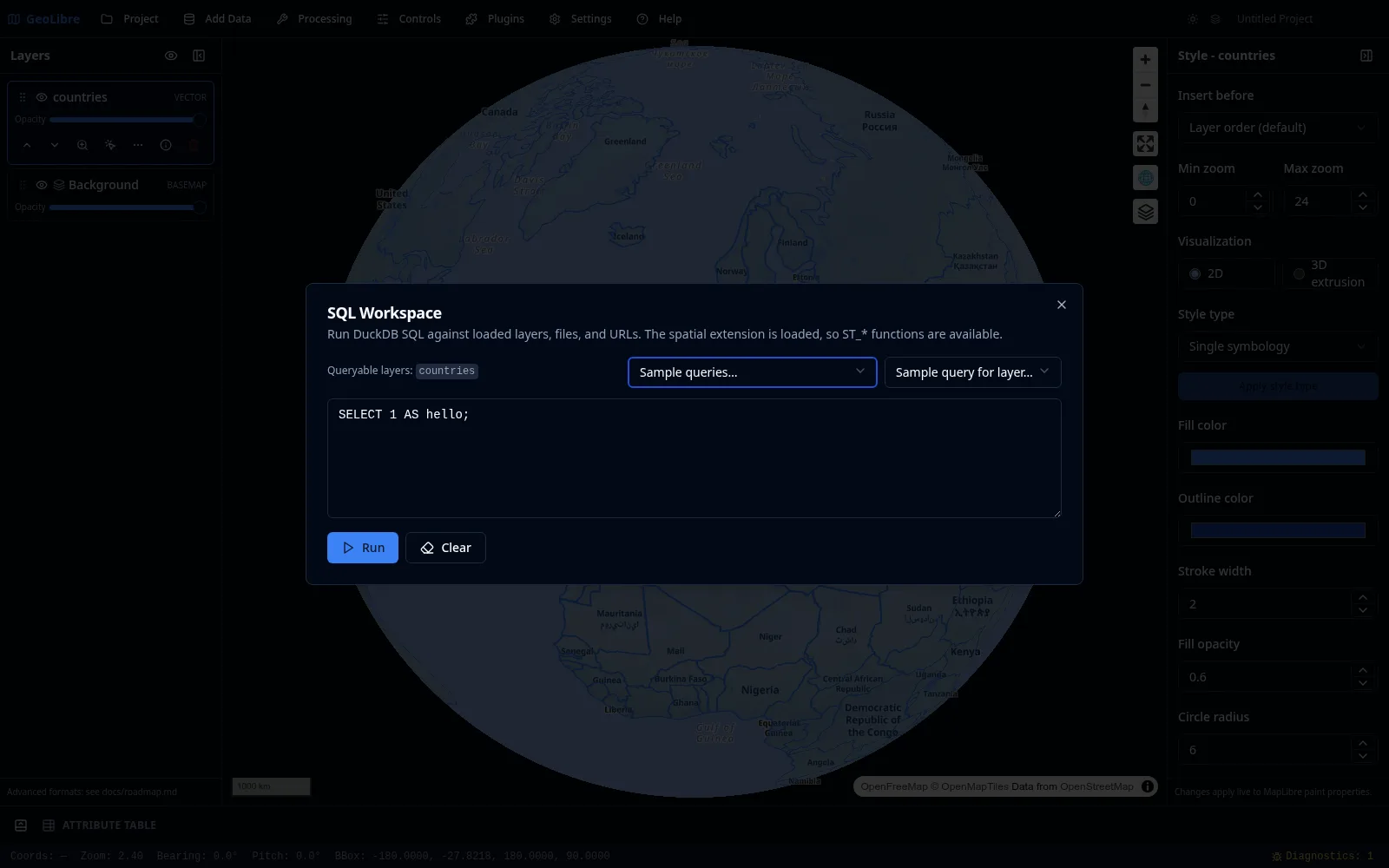
The SQL Workspace lets you analyze data with DuckDB Spatial SQL and add the results to the map. It runs on DuckDB-WASM, so it works in the browser as well as the desktop app. Open it from Processing → SQL Workspace.
1. Query a loaded layer
Every loaded vector layer is a queryable table. Load the sample countries layer (see Your First Map), then run:
SELECT NAME, CONTINENT, GDP_MD_EST
FROM countries
ORDER BY GDP_MD_EST DESC
LIMIT 10;
Click Run to see the ten countries with the highest estimated GDP.
Sample dataset columns
NAME, CONTINENT, POP_EST, and GDP_MD_EST are Natural Earth field names in the sample countries.parquet, whose geometry column is geom. A different dataset will have its own column names. To discover them, run DESCRIBE SELECT * FROM 'your-file-url' first.
2. Query a remote file directly
You do not have to load a file first. The Workspace detects a bare URL in a FROM clause and wraps it in the right reader automatically, then streams the file over HTTP range requests so you do not download it in full. This bare-URL shorthand is a SQL Workspace convenience; in the standard DuckDB CLI you would write read_parquet('https://...') explicitly.
SELECT COUNT(*) AS n
FROM https://data.source.coop/giswqs/opengeos/countries.parquet;
3. Use spatial functions
The spatial extension is loaded, so ST_* functions are available. For example, compute area and keep the geom column so the result can be mapped:
-- area is in square degrees because the data is in EPSG:4326;
-- the ranking is valid, but for km2 use
-- ST_Area_Spheroid(ST_FlipCoordinates(geom)) / 1e6 (it expects lat/lon order).
SELECT NAME, ST_Area(geom) AS area, geom
FROM https://data.source.coop/giswqs/opengeos/countries.parquet
WHERE CONTINENT = 'Africa'
ORDER BY area DESC;
4. Add the result to the map
When a query returns a geometry column, click Add as layer to create a new layer from the result, optionally naming it. The result layer supports identify, selection, and the attribute table like any vector layer, and you can add several result layers at once.
5. Export
Export the query result as CSV or GeoParquet straight from the workspace — the Export CSV and Export GeoParquet buttons sit beside Add as layer. See SQL Workspace.
Sample queries and history
Use the Sample queries… menu to start from a working query, and History… to rerun a previous one.
Next steps
- Do equivalent geometry operations with the menu-driven Vector Analysis tools.
- Convert results to cloud-native formats in Cloud-Native Data.