Managing Layers
The Layers panel on the left lists every layer in the project, from the topmost drawing layer down to the basemap. Selecting a layer here drives the Style panel and the Attribute table.
The on-map Layer Control also lists project layers, including ones currently hidden or still loading, nested under the same layer groups as the left panel. Its checkboxes, opacity sliders, and group folders mirror the same settings as the left panel, and dragging a layer or using its right-click Move actions reorders the project's layers.

Layer order and visibility
- Visibility: click the eye button to show or hide a layer. The Hide all layers button at the top of the panel hides every layer at once.
- Order: drag the grip handle beside a layer's name onto another layer to reorder it, or use the move up and move down actions. Layers higher in the list draw on top. The basemap (Background) always stays at the bottom. Layer-handle drags stay inside the panel; dropping files from Finder into the desktop app remains a separate data-import action.
- Opacity: each layer has an opacity slider from 0 to 100 percent.
Hover tooltips
When at least one layer shows a hover tooltip, the Layers panel (and the read-only viewer) shows a Hover tooltips checkbox. Untick it to pause every layer's hover tip while you explore the map or inspect attributes; tick it again to bring them back with the same per-layer choices and fields. This is a viewing switch only: it does not change or dirty the saved project, and it turns back on when a project opens.
Blend modes
The Style panel carries a Blend menu, above the symbology controls, that sets how a layer's colours combine with the map below it. Opacity dilutes a layer; a blend mode mixes it, so the layers underneath still read through at full saturation.
The classic use is shading: put a hillshade, a terrain raster, or a dark basemap under a thematic fill or an aerial image, set the top layer to Multiply, and the relief shows through the colour instead of being hidden by it. Lowering opacity instead would wash out both.
| Mode | What it does | Typical use |
|---|---|---|
| Normal | Ordinary transparency — the default | Everything else |
| Multiply | Darkens: the two colours are multiplied | Colour or imagery over a hillshade; adding shadow |
| Screen | Lightens: the inverse of Multiply | Lifting a dark layer out of a dark basemap |
| Lighten | Keeps whichever colour is brighter | Overlaying bright features without darkening the map |
| Add | Sums the colours, clipping toward white | Glow effects, heat and density overlays |
Blending applies to a layer's fills, outlines, points, markers, and raster tiles. Labels are deliberately excluded and always draw normally, so place names stay legible over a multiplied hillshade.
Overlapping points and 3D buildings blend twice
Polygons, lines, and raster tiles blend as a whole layer: two overlapping polygons in the same layer combine with the map beneath them, not with each other. Points and 3D extrusions cannot, because MapLibre provides no layer-level compositing step for them, so each symbol blends separately. Where two point symbols overlap on screen the overlap is blended twice and reads noticeably darker under Multiply than the rest of the symbol.
If that shows in your map, reduce the overlap (a smaller radius, clustering, or a scale-dependent minimum zoom), or convert the points to polygons.
A blend mode is saved with the project and travels with a copied style, but it is a GeoLibre rendering setting with no equivalent in the MapLibre or Mapbox style specification, so it is dropped when you export a layer's style to a style file, SLD, or QML.
Why these five modes
MapLibre draws every layer into one WebGL canvas and offers no per-layer blending API, so GeoLibre applies these modes inside the renderer using the GPU's fixed-function blend stage. That stage can express these five and no more. Photoshop-style modes such as Overlay, Colour Dodge, and Soft Light need to read the colours already on the canvas from inside a shader, which is not possible here without an extra full-frame copy on every draw. Darken and Subtract are not offered either: their GPU equations also act on the transparency channel, which would erase the map wherever the layer does not cover it. See maplibre-gl-js#8073 for the upstream work that would widen this list.
Blending is applied while MapLibre draws a layer, so it reaches only the layers GeoLibre itself styles. The following are drawn or styled elsewhere, and so have no Blend menu:
- 3D Tiles, Gaussian splats, LiDAR point clouds, and deck.gl overlays, which draw with their own WebGL renderer instead of MapLibre's.
- Cloud-Optimized GeoTIFFs added through Add Data > Raster Layer, for the same reason on their default rendering engine.
- Vector layers added through Add Data > Vector Layer, which do draw through MapLibre but are styled by their own control rather than by GeoLibre, so there is no point at which the blend mode could be applied.
Everything else blends: local and remote GeoJSON, ordinary raster layers (XYZ, WMS, WMTS), PMTiles, MBTiles, and vector tiles.
Per-layer actions
Selecting a layer expands a row of icon buttons on its card:
| Button | What it does |
|---|---|
| Move up / Move down | Shift the layer one position in the stack. |
| Zoom to layer | Fit the map to the layer's extent (for layers whose bounds are known). |
| Identify features | Click features on the map to see their attributes in a popup. On a raster layer this reads the pixel value instead, and on a multiband raster it also builds a spectral profile. On an editable vector layer, each result also offers Edit geometry (opens the GeoEditor with that feature selected) and Edit attributes (opens the attribute table in edit mode on that feature's row). |
| Open Style panel | Select the layer and open its styling controls. |
| Layer actions | The full menu, below. |
| Metadata | Inspect the layer's source and configuration, and edit its descriptive metadata (abstract, keywords, license, contact, lineage, temporal extent, and links). Export as STAC Item writes that metadata out as a STAC Item. |
| Remove layer | Delete the layer from the project. |
The Layer actions menu (the … button) holds everything else:
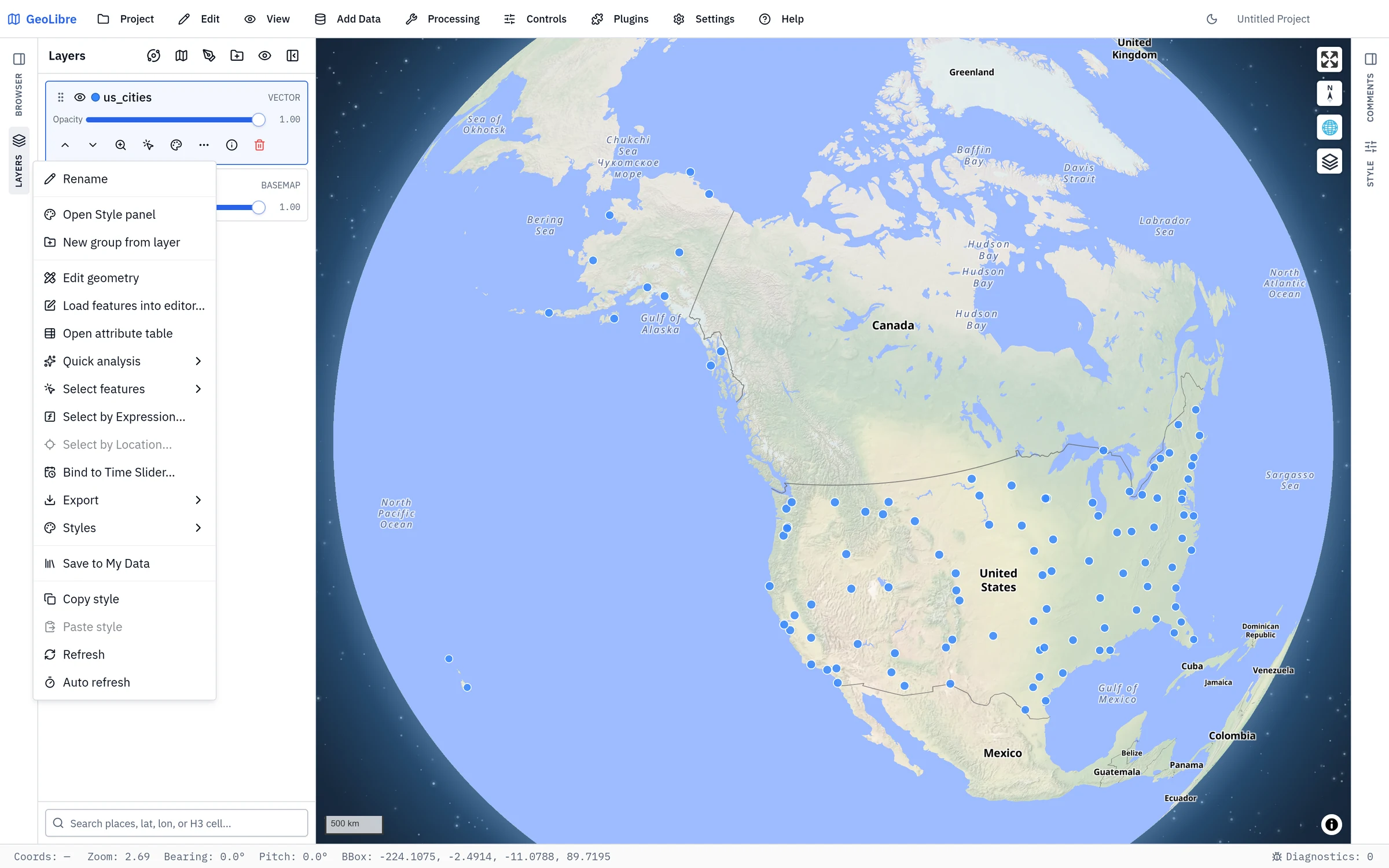
| Item | What it does |
|---|---|
| Rename | Change the layer's display name. |
| Open Style panel | Same as the palette button on the card. |
| New group from layer | Wrap this layer in a new group. |
| Edit geometry | Hand the layer to the GeoEditor for vertex-level editing. |
| Load features into editor… | Copy features from this layer into the GeoEditor's sketch layer. |
| Open attribute table | Show this layer's records in the Attribute table. |
| Quick analysis | Run a buffer, centroids, convex hull, or bounding box over the whole layer with no dialog. See Right-click quick actions. |
| Select features | The interactive selection modes: by click, rectangle, polygon, freehand, or radius, plus Clear Selection. Hold Shift to add, Alt to remove, Shift+Alt to intersect, and Esc to cancel. |
| Select by Expression… / Select by Location… | Build a selection from an attribute expression or a spatial relationship. Select by Expression can also apply the expression as a persistent layer filter, hiding non-matching features without creating a new layer. Both are also on the Edit menu. |
| Bind to Time Slider… | Drive the Time Slider from one of this layer's date or number fields. |
| Export | Write the layer out as GeoJSON, GeoParquet, GeoPackage, KML, KMZ, zipped Shapefile, or CSV (attributes only). On a raster layer it offers GeoTIFF (COG) and Extract subset…, and on a LiDAR layer LAS, LAZ, or COPC. A polygon layer drawn as a 3D extrusion can also be exported as a 3D model (glTF .glb, OBJ, or STL) for Blender and other 3D tools. See 3D model export. |
| Styles | Import and export symbology — see below. |
| Save to My Data | Store the fully configured layer in your personal library, ready to re-add from the Browser panel in any later project. |
| Copy style / Paste style | Carry symbology from one layer to another. |
| Refresh / Auto refresh | Reload the source now, or on an interval — see Refreshing live layers. |
| Reload from disk / Watch file for changes | Desktop app, layers read from a local file: re-read the file now, or reload it whenever it changes on disk. These replace Refresh / Auto refresh on such layers. |
| Save edits to source file | Desktop app: write attribute and geometry edits back to the layer's GeoJSON or GeoPackage file. On an ArcGIS feature layer, a PostGIS table, or a SQL Server table it reads Save edits to ArcGIS service, Save edits to PostGIS table, or Save edits to SQL Server table. |
| Materialize to editable layer | DuckDB layers: copy the query result into an editable GeoJSON layer. |
| Edit query in SQL Workspace | SQL query layers: reopen the layer's query in the SQL Workspace. |
Some entries are unavailable on layers they do not apply to: Select by Location needs a second layer to compare against, and Paste style needs a style on the clipboard.
Importing and exporting styles
Vector layers have a Layer actions → Styles submenu for symbology interchange:
- Export GeoLibre URL style writes a compact
.geolibre.style.jsonfile designed for thedataandstyleURL parameters. It contains no feature data. Its MapLibre render layers use the original GeoJSON filename stem assource, allowing one style document to distinguish GeoJSON members in a ZIP. - Export as Mapbox GL style writes a self-contained Mapbox/MapLibre style with the layer's GeoJSON embedded.
- Export as OGC SLD and Export as QGIS QML produce styles for other desktop and server GIS software.
- Import style from file (GeoLibre URL / Mapbox GL / SLD / QML)… applies a supported style file to the selected layer. When importing a GeoLibre URL style interactively, the filename-based
sourceassociation is ignored because the selected layer is the target. - Import style from text… opens a box to paste a style into, for one copied out of QGIS, a gist, or a catalog page rather than saved to disk. It reads the same four formats, decided from the text rather than a file extension, and reports the same warnings. The Style panel header carries the same box, so you do not have to leave the panel to reach it.
- Saved styles (Style Manager)… applies a preset from your style library, or saves the current symbology into it. The same library is reachable from Settings → Style Manager.
To use a GeoLibre URL style, upload it to a CORS-enabled web host and open GeoLibre with both URLs:
https://web.geolibre.app/?data=https://assets.geolibre.app/data/places.geojson&style=https://assets.geolibre.app/data/sample.style.json
See Embedding & Sharing for GeoParquet and PMTiles deep links, ZIP source matching, REST API responses, raster-style JSON, and encoding nested URLs.
3D model export
When a polygon layer's Visualization is set to 3D extrusion in the Style panel, Layer actions → Export also offers 3D model: glTF (.glb), 3D model: OBJ, and 3D model: STL. Each feature becomes a closed solid (floor, walls, and roof) with the height, base, and color the map draws. Categorized, graduated, and expression-based colors and heights come through as drawn.
- glTF (.glb) keeps one named object per feature with its attributes as custom properties, and one material per color. Blender opens it with File → Import → glTF 2.0.
- OBJ keeps one object per feature and stores colors on the vertices.
- STL writes one uncolored mesh, for 3D printing and CAD tools.
Coordinates are in meters around the center of the layer. glTF and OBJ use Y as the up axis, and STL uses Z. The glTF file stores the longitude and latitude of that center on its root object. Features whose height is not above the extrusion base, or that have no area, are skipped, and a notice says how many.
Layer groups
Groups are folders in the layer stack. They can nest, so a project can carry a real hierarchy rather than one flat list.
- Create: New group adds an empty folder. New group from layer wraps the layer you are on, and New group from selected layers wraps a multi-selection.
- Fill: Move to group moves one layer, Move selected layers to group moves a whole selection in one step (keeping their relative order), and Add data to group opens Add Data with the new layer targeted at that group.
- Organize: rename a group, collapse or expand it, move it up or down, and set a group-level opacity that applies to everything inside.
- Sort: Sort A to Z and Sort Z to A order a group's contents by name, top of the list first. Numbers sort naturally (Parcel 2 before Parcel 10) and case is ignored. Subgroups are sorted among themselves and move with everything inside them, while the group's own layers stay together as one block. Undo restores the previous order.
- Visibility: hiding a group hides its layers. A layer inside a hidden group is marked Hidden because its group is not visible, so you can tell it apart from a layer you turned off yourself.
- Remove: Ungroup (keep layers) dissolves the folder and leaves its layers in place; Delete group and layers removes both.
- On-map Layer Control: groups appear there as collapsible folders with their own checkbox and opacity slider, and toggling, fading, or collapsing a group in either place updates the other. A layer dragged or moved there stays inside its own group. A group's own layers always sit together, with its subgroups above or below them, so a move that would split them (one layer above a subgroup while its siblings stay below) is not applied and the layer returns to its place.
Groups and their nesting are saved with the project, and importing a QGIS project brings that project's group tree across.
Refreshing live layers
WFS and GeoJSON URL layers can refresh automatically so the map stays current with a changing source. Open the layer's refresh configuration and choose an interval (for example off, 15 seconds, 30 seconds, 1 minute, 5 minutes, 15 minutes, or a custom value), or trigger a manual refresh.
Each reloadable layer persists a connection record with the project, so the refresh cadence survives a save and reopen. The record also carries the layer's synchronization status — when it last succeeded and the most recent error — which the Layers panel shows, and an on-failure policy that decides whether a failed refresh keeps the last good data or clears it. See Project Format for the schema.
DuckDB layers
Layers added from a DuckDB source or produced by the SQL Workspace support identify, selection, and the attribute table like any vector layer. You can also materialize a DuckDB query result into an editable GeoJSON layer when you want to edit its geometry or attributes.
The basemap
The Background entry at the bottom of the panel is the basemap. Toggle its visibility and adjust its opacity here. To change which basemap is shown, double-click the row to open the Change background dialog, or use the Basemaps plugin from the Plugins menu. See Adding Data.
Editing geometry
To draw or edit features directly on the map, activate the GeoEditor plugin from the Plugins menu. It adds drawing, vertex editing, and deletion tools for GeoJSON layers.