SQL Workspace
The SQL Workspace runs DuckDB Spatial SQL right in the app, against your loaded layers, local files, and remote URLs. Open it from Processing → SQL Workspace. The spatial extension is loaded for you, so ST_* functions are available.
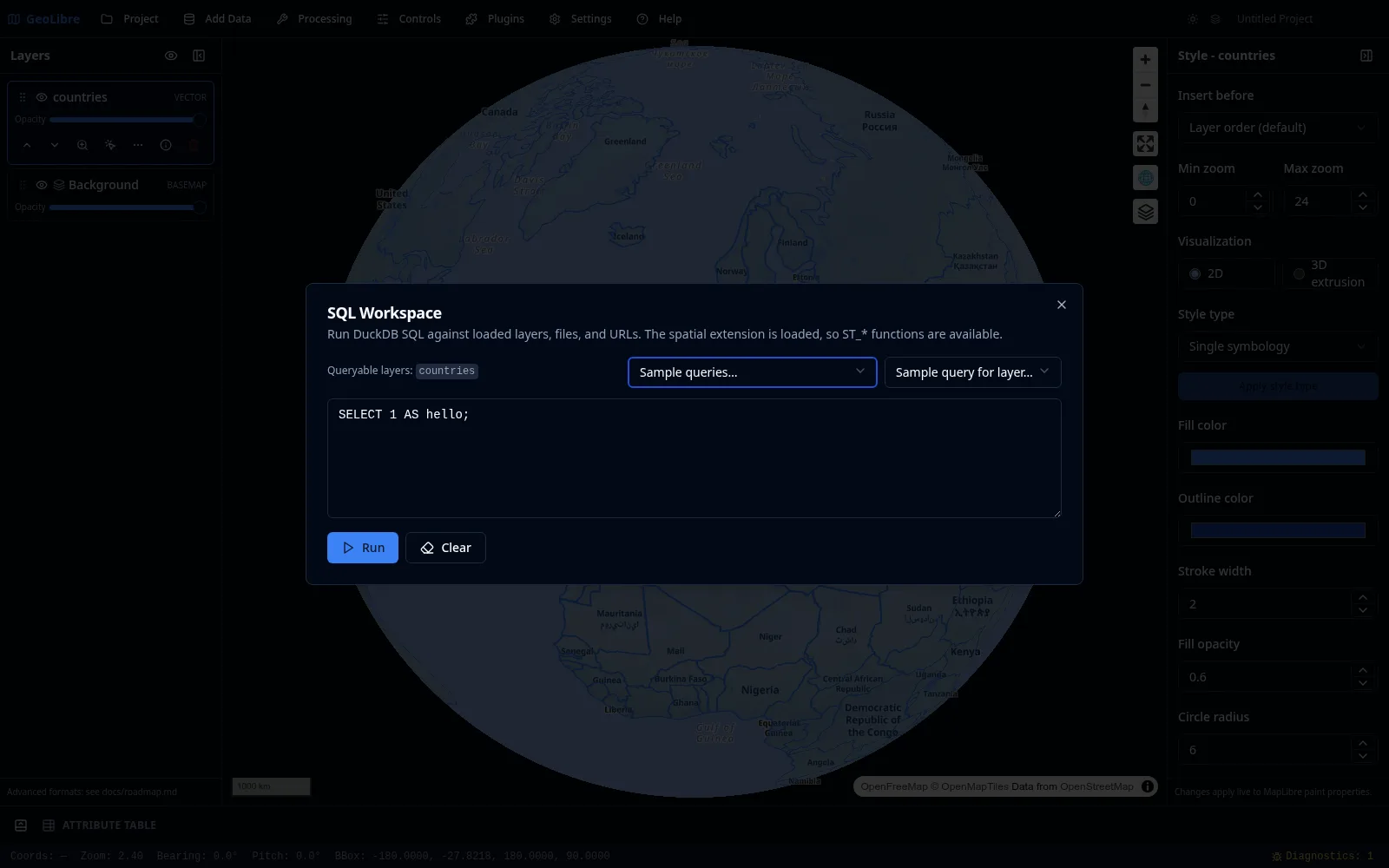
Querying loaded layers
Every loaded vector layer is exposed as a queryable table; the workspace lists the available table names under Queryable layers. Write a query in the editor and click Run (or press Ctrl/Cmd+Enter) to see the results. Tab or Ctrl+Space autocompletes.
SELECT NAME, CONTINENT, POP_EST
FROM countries
ORDER BY POP_EST DESC
LIMIT 10;
Reading files and URLs
You can query files and remote URLs directly. The workspace auto-wraps a bare URL into the matching reader (for example Parquet, CSV, JSON, or GeoJSON) and streams remote files over HTTP range requests, so you do not have to download them first.
SELECT NAME, CONTINENT, POP_EST, geom
FROM https://data.source.coop/giswqs/opengeos/countries.parquet
LIMIT 100;
Cloud URLs (s3://, gs://, az://)
Cloud object-store URLs are transparently rewritten to their public HTTPS equivalents, so you can use them directly in queries:
-- Amazon S3
SELECT * FROM read_parquet('s3://bucket/path/to/data.parquet') LIMIT 10;

-- Google Cloud Storage
SELECT * FROM read_parquet('gs://bucket/path/to/data.parquet') LIMIT 10;

-- Azure Blob Storage
SELECT * FROM read_parquet('az://account/container/data.parquet') LIMIT 10;
The bare FROM s3://… form works too — the workspace wraps it in the matching reader automatically.
Private S3 buckets
An s3:// URL in a bucket covered by an S3 connection (Settings → Cloud Storage) is read through a presigned URL signed with that connection's credentials; every other cloud URL is read anonymously. Name individual files: globs are not signed. See Cloud Storage. gs:// and az:// are public-only.
CORS
Browser-side reads require the bucket's CORS policy to allow cross-origin requests. Most public dataset buckets (e.g. AWS Open Data, Source Cooperative) already allow this. If you hit a CORS error, check the bucket's CORS configuration.
Choosing a SQL engine
The SQL engine menu (top right) selects which SQL engine runs your query. All three load a spatial extension, so ST_* functions are available in each.
- DuckDB (default) — DuckDB Spatial, in-browser. Queries loaded layers, local files, and remote URLs (including
s3:///gs:///az://public data). Works offline after first use. - PostGIS — PGlite + PostGIS, in-browser. Queries loaded layers using full PostGIS SQL. The first run loads a ~19 MB engine.
- Apache Sedona — Sedona spatial SQL over your loaded layers. It runs in-browser on CereusDB, a WebAssembly build of Apache SedonaDB. On the desktop app it uses the SedonaDB sidecar instead when the optional
sedonaextra is installed (better for larger layers); otherwise it falls back to the in-browser engine automatically. The CereusDB engine is downloaded lazily on first use.
Sedona reads loaded layers
Like PostGIS, the Apache Sedona engine queries layers you have loaded into the map (listed as Queryable layers). The geometry column is named geometry, so spatial functions look like ST_Centroid(geometry), ST_Area(geometry), or ST_Buffer(geometry, 0.1).
Attribute columns in the browser engine
With the in-browser CereusDB engine, SELECT * returns each layer's attributes as columns (and "Add as layer" preserves them), but you cannot yet reference an attribute by name in SQL (e.g. WHERE name = 'Texas') — that build exposes attributes only through the geometry column and spatial functions. Run the SedonaDB sidecar (install the sedona extra) for full attribute SQL.
Sample queries and history
- The Sample queries… and Sample query for layer… menus drop ready-made queries into the editor to get you started.
- Your previous queries are kept under History… so you can rerun them.
Using the results
When a query returns geometry, Add as layer adds the result to the map as a new layer (with an optional layer name). The result layer behaves like any vector layer, with identify, selection, and the attribute table. With the DuckDB engine, Add as query layer instead adds a live layer that re-runs the SQL when you refresh it from the Layers panel. Export CSV and Export GeoParquet save the results to a file (GeoParquet needs a geometry column).
Multiple result layers
You can add several DuckDB query-result layers to the same project and keep them all open at once.
See the Spatial SQL tutorial for an end-to-end walkthrough. The SQL Workspace works in both the browser and the desktop app because it runs on DuckDB-WASM.