Your First Map
This tutorial takes you from an empty workspace to a styled map with inspectable data, in a few minutes. You can do all of it in the live viewer.
1. Open GeoLibre
Open web.geolibre.app, or launch the desktop app. You start with a basemap and an empty Layers panel.
2. Add a layer
- Open Add Data → Vector Layer.
- In the Add Vector panel, enter a vector URL. You can use the sample countries dataset:
https://data.source.coop/giswqs/opengeos/countries.parquet - Click Load. The countries appear on the map and a
countrieslayer is added to the Layers panel.
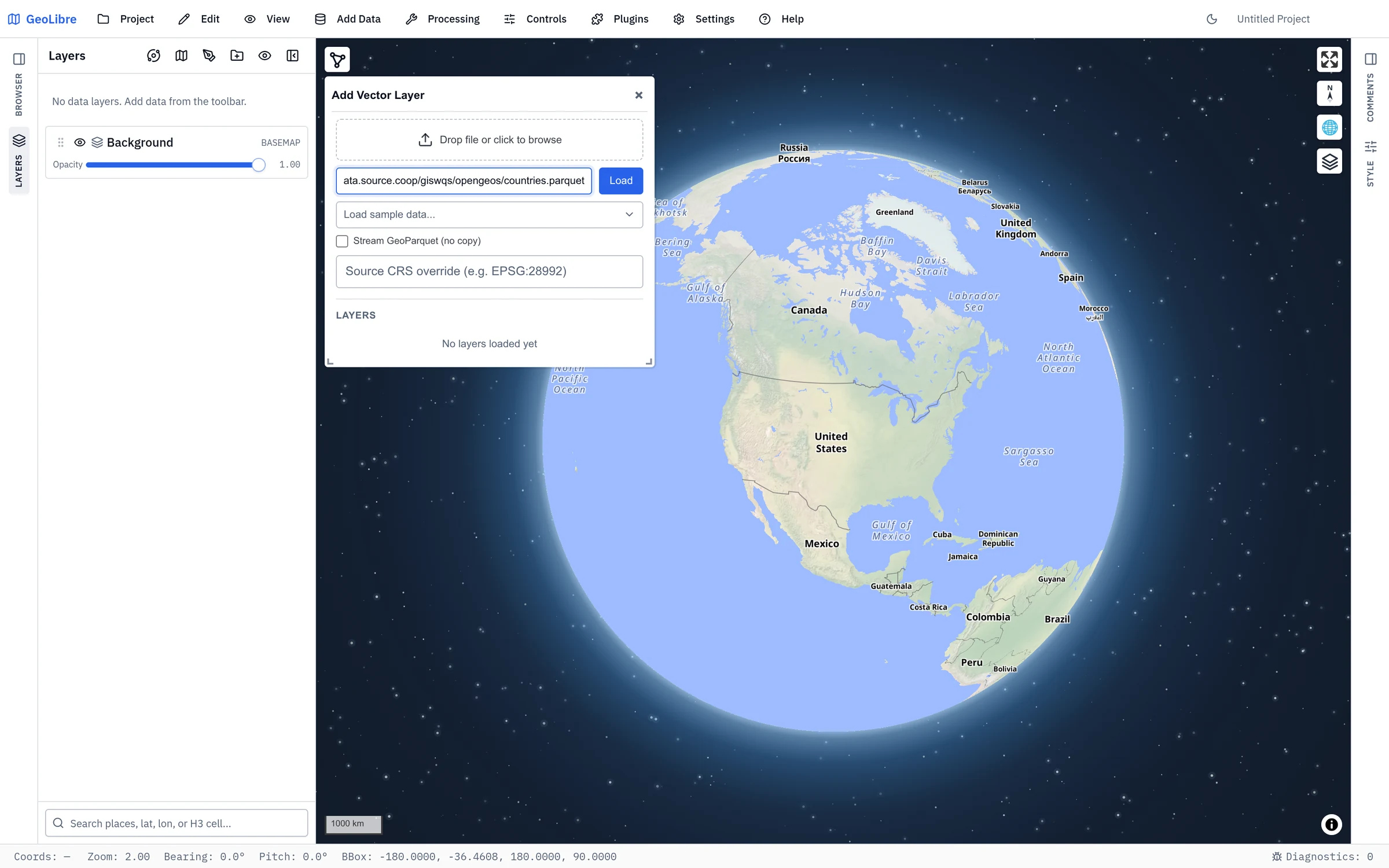
See Adding Data for every supported source.
3. Style the layer
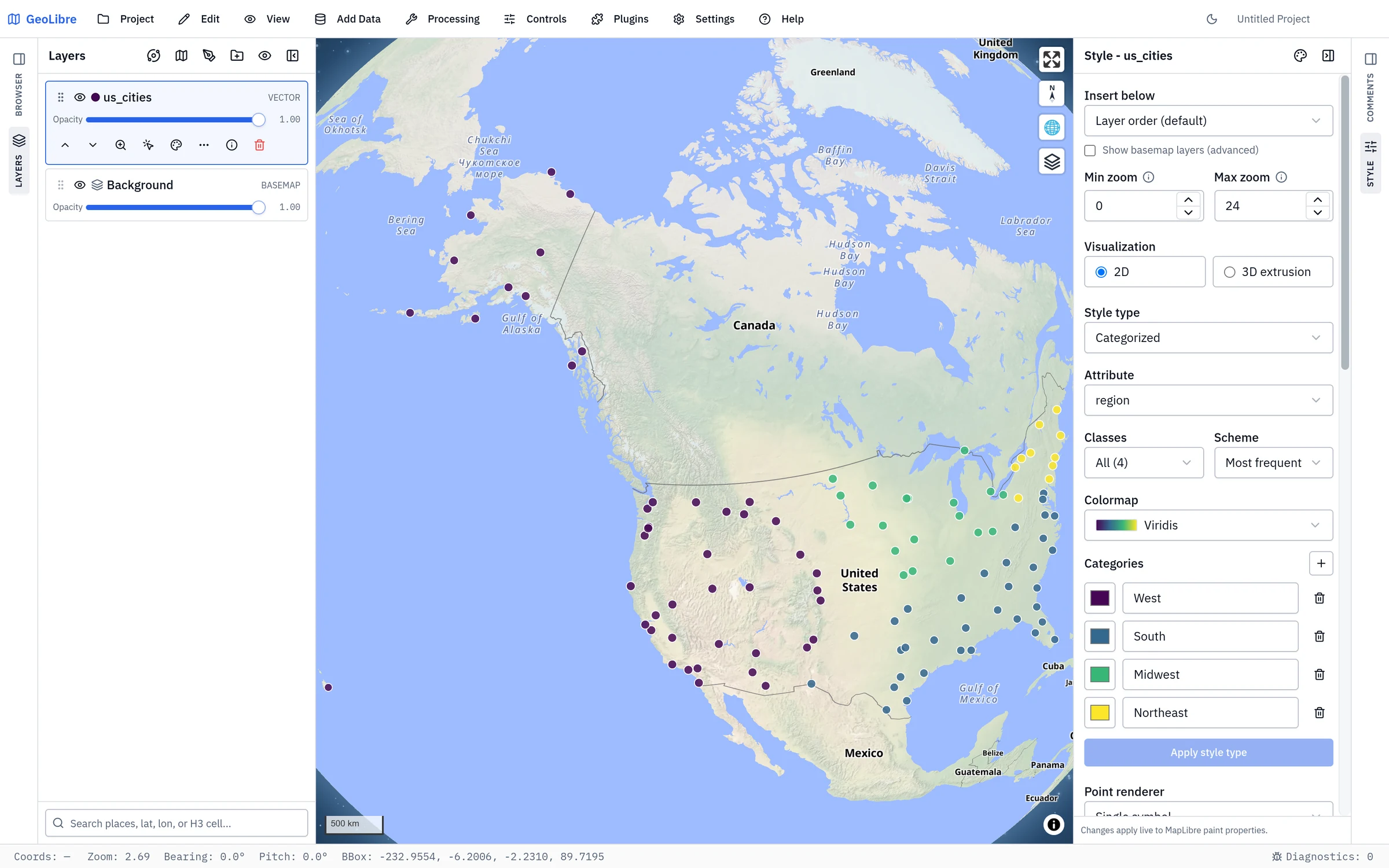
- Select the
countrieslayer in the Layers panel, then expand the Style panel on the right if it is collapsed. - Adjust the Fill color, Outline color, and Fill opacity to taste.
- To make a choropleth, set Style type to Graduated, pick a numeric Attribute (for example
POP_ESTorGDP_MD_EST), choose the number of Classes, a Scheme, and a Colormap, then click Apply style type.
4. Inspect the data
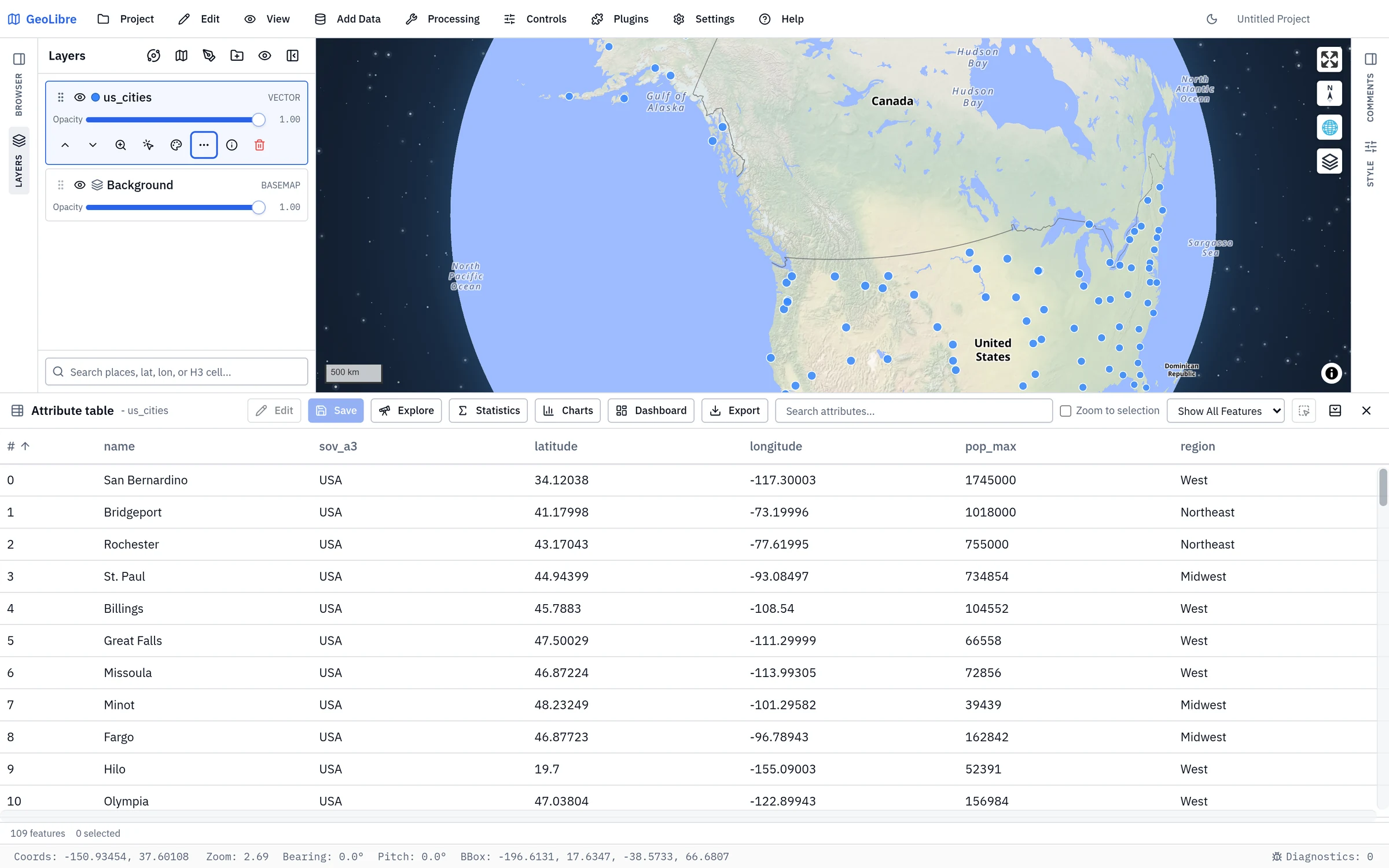
- Click Attribute table on the status bar to expand it, then select the
countrieslayer to load its records. See Attribute Table. - Sort by a column, or type in Search attributes to find a feature. Selecting a row highlights it on the map.
- Click Explore to profile every field at once — its type, how complete it is, and how its values are distributed.
- You can also turn on Identify features for the layer and click a country on the map to see its attributes in a popup.
5. Save or share
- Use Project → Save to write a
.geolibre.jsonfile. The desktop app saves to disk; the browser build uses the browser's save dialog where it has one and otherwise downloads the file. See Projects. - Anywhere, use Project → Share to upload the project and get a public link. See Sharing & Embedding.
Next steps
- Load cloud-native and remote formats in Cloud-Native Data.
- Run geometry tools in Vector Analysis.
- Query your data in Spatial SQL.