Story Maps
Story maps turn a project into a scroll-driven narrative. As the reader scrolls, the map flies between chapters, and project layers can fade in and out. The feature is inspired by the maplibre-gl-storymaps template. Authoring and the in-app presentation run locally, though basemap styles and any chapter images are still fetched from their URLs, and the standalone HTML export loads MapLibre and scrollama from a CDN.
Open the builder
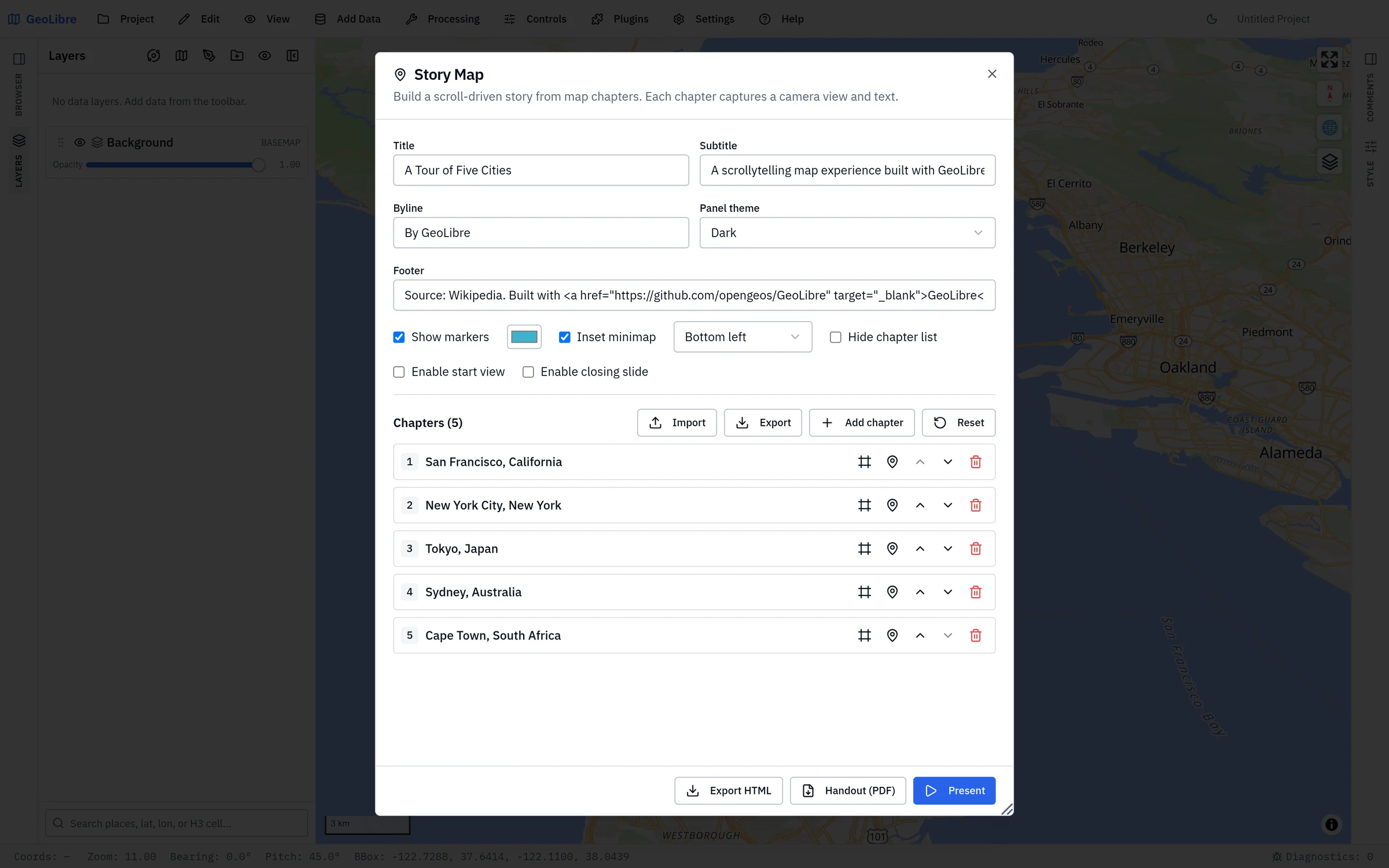
Choose Project → Story Map to open the builder. The builder edits a story
that is saved inside the .geolibre.json project file, so it travels with your
project.
Try it instantly
When the story is empty, click Load sample story to populate a five-city world tour. Hit Present and scroll to see it in action, then edit or replace the chapters with your own.
Story settings
- Title / Subtitle / Byline / Footer appear in the presentation header and footer. The footer accepts inline HTML (for example, links and credits).
- Panel theme switches the chapter panels between light and dark.
- Show markers drops a marker at each chapter's center; pick its color.
- Inset minimap shows a small overview map in a chosen corner.
- Hide chapter list removes the navigation pane from the presentation, for a story meant to be read straight through.
- Enable start view adds an opening screen before the first chapter, carrying the story's title block. Choose what the map shows behind it: an Empty screen, a Black screen, a Global view, or a Preview of first chapter.
- Enable closing slide adds a final screen after the last chapter, for credits or a closing note. The same backdrop choices apply, plus Hold on last chapter to leave the camera where the story ended.
Chapters
Click Add chapter to capture the current map view as a new chapter. Each chapter has:
- Title, Description (inline HTML allowed), and an optional Image URL.
- Panel alignment:
left,center,right, orfull. - Map animation:
flyTo,easeTo, orjumpTo. - Hide panel keeps the map transition but hides the text (useful for a pure map beat).
- Rotate camera slowly spins the view after the transition settles.
Use Set to current view to re-capture the camera after panning, zooming, or tilting the map, and the map-pin button to fly to a chapter while editing. Reorder chapters with the arrows and remove them with the trash icon.
Import and export chapters
To author content outside GeoLibre, use Import / Export next to Add chapter:
- Export JSON writes the whole story (settings and chapters); Import JSON
reads it back (a full
.geolibre.jsonproject file also works). - Export CSV writes one row per chapter (spreadsheet-friendly). Import CSV replaces the chapters while keeping your current story settings.
The CSV columns are id, title, description, image, alignment, hidden, lng, lat,
zoom, pitch, bearing, mapAnimation, rotateAnimation, onChapterEnter,
onChapterExit. Columns are matched by name, so order is flexible and you only
need the ones you use; lng/lat set the chapter center, and missing ids are
generated on import. The onChapterEnter/onChapterExit columns hold JSON and
can be left blank when authoring by hand.
Layer effects
Under On enter and On exit, add layer fades that run as a chapter becomes active or is left behind. Pick a project layer and a target opacity (and optional transition duration). This is how you reveal or hide data as the story progresses.
Present
Click Present to start the scroll-driven presentation over the live map. Scroll to move between chapters; press Esc or Exit to return to editing.
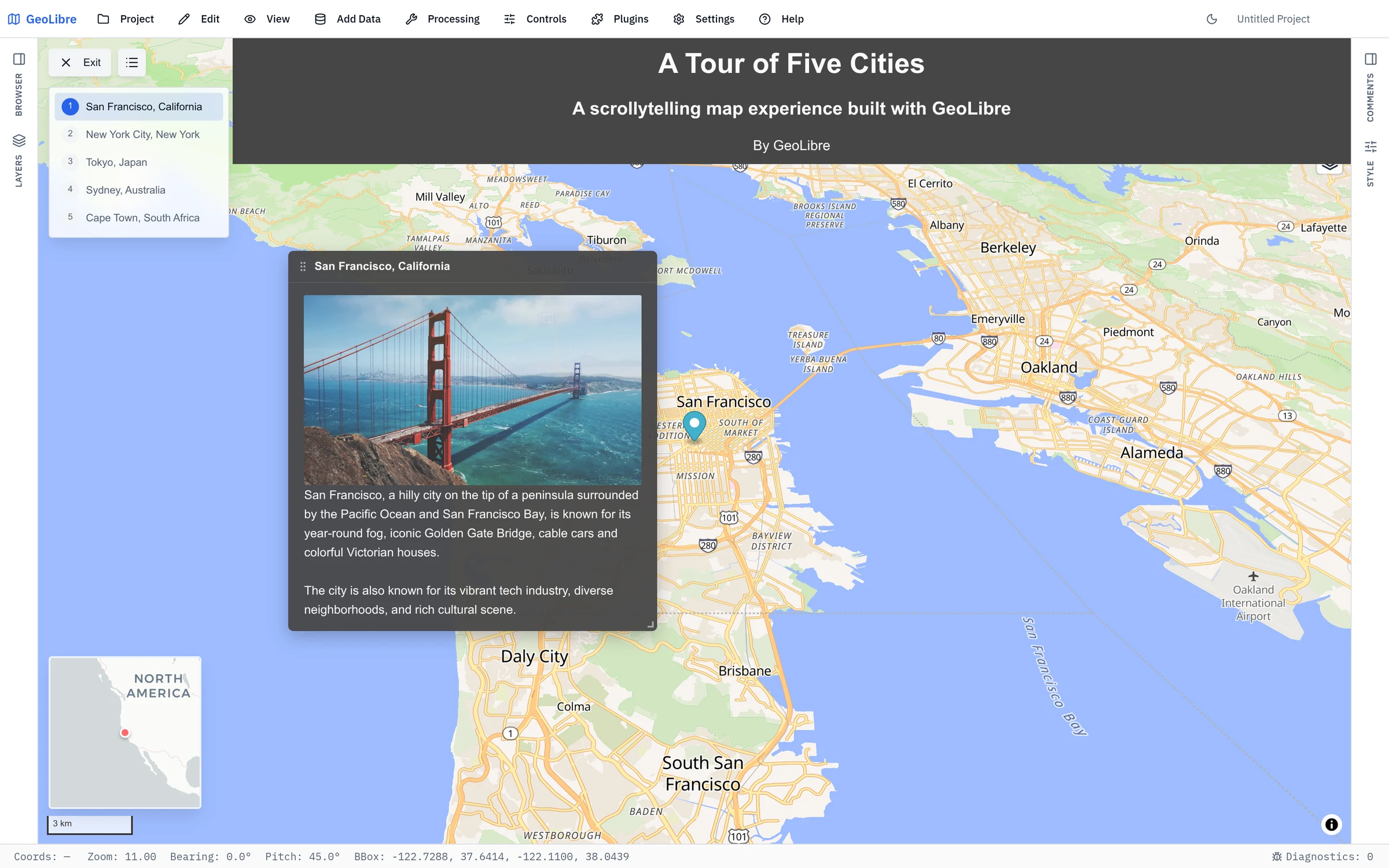
A navigation pane on the left lists every chapter for a quick overview; click any entry to jump straight to it. Toggle the pane with the list button next to Exit. The map controls (navigation, fullscreen, globe, layer control) stay usable during the presentation.
Each chapter card is movable and resizable: drag its title bar to reposition it (double-click the bar to reset), or drag the bottom-right corner to resize, so you can move a card aside and explore the map beneath it.
Handout (PDF)
Click Handout (PDF) to export the story as a multi-page PDF, one page per screen. Pick which screens to include, the paper size and orientation, and the document title, subtitle, byline, and footer text drawn on every page. Each chapter page shows the captured map view, the chapter photo beside it when the chapter has one, and the chapter description.
Clickable location markers draws a marker at each chapter's location, its tip on the chapter coordinate. Opened in a PDF viewer, clicking a marker opens that coordinate in Google Maps, so a reader can navigate to the place. The marker takes the story's Marker color, and the option starts on when Show markers is enabled for the story.
Export to HTML
Click Export HTML to save a self-contained .html page that reproduces the
story without GeoLibre. In-memory GeoJSON layers referenced by chapter effects
are inlined so the exported story behaves like the in-app preview. The page is a
single static file you can host anywhere (GitHub Pages, Netlify, S3, or any web
server).