Projects
A GeoLibre project captures your whole workspace in a single .geolibre.json file: the map view, the basemap, every layer with its source and style, map preferences, plugin state, and environment variables. Everything in this section lives under the Project menu.
Some entries may be hidden
The Project menu is filtered by the active UI profile, and a few entries are desktop-only. If an item described below is missing, check the profile in use and whether you are running the browser build.
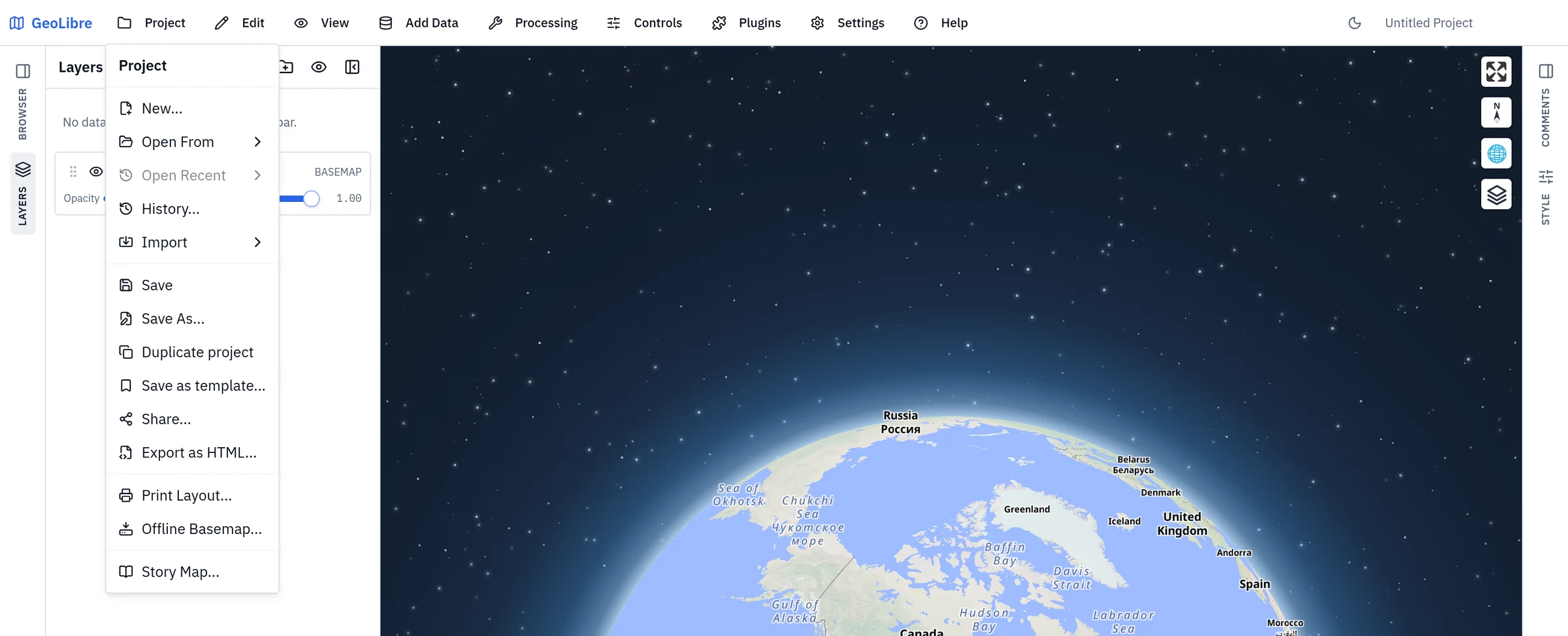
New
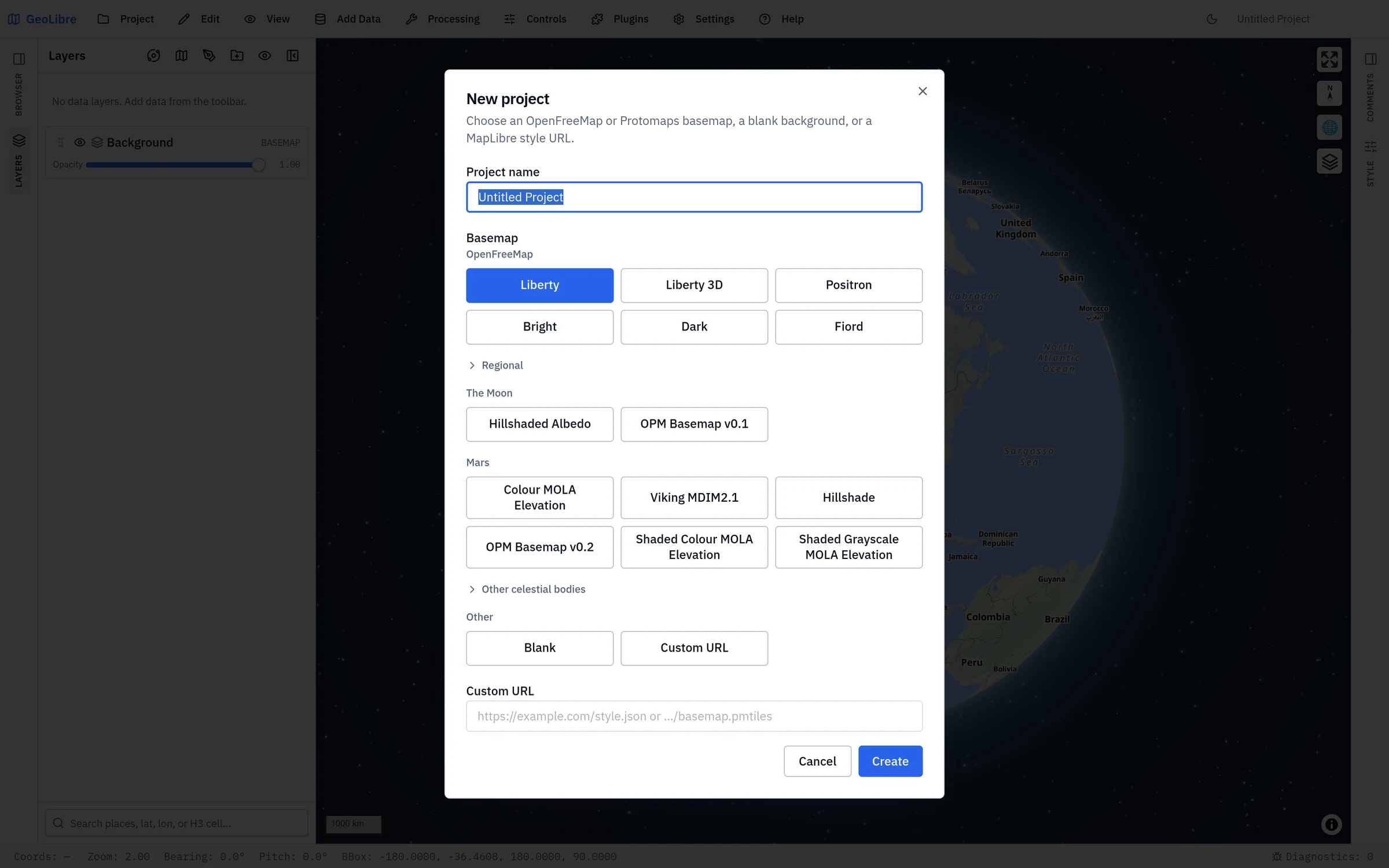
Project → New... starts a fresh project. GeoLibre offers to save the current project first, then resets the layers, map view, controls, and plugin state to defaults.
The New project dialog names the project and picks its starting basemap: the OpenFreeMap styles, the Protomaps styles (when the build offers them), a Regional group, sections for the Moon, Mars, and other celestial bodies, a blank background, or a custom MapLibre style or PMTiles URL. Templates you saved with Save as template... appear above the basemaps under Saved Templates.
The collapsible Examples section lists a few curated starter projects from the Gallery. Clicking one downloads it from assets.geolibre.app and opens it as an unsaved copy, the same way Open From → URL would. It needs an internet connection; if the download fails, the dialog stays open on your current project and says which example could not be opened.
Open
Project → Open From has three sources:
- File... opens a
.geolibre.jsonfile from disk. The browser build uses the browser's file picker. - URL... loads a public
.geolibre.jsonfrom an HTTP or HTTPS URL. This works in the browser too and adds the project to your recent list. - Gallery... browses the shared project gallery and opens any entry with one click.
Project → Open Recent lists the projects you have opened before, each with its name, path, and the time you last opened it. Click an entry to reopen it, use the small remove button to drop a single entry, or choose Clear Recent Projects to empty the list. On the desktop app the recent list persists across sessions. In the browser, a URL-based entry reopens directly, while an entry for a local file asks you to pick the file again, because a browser cannot reopen a file on disk by itself.
Loading a project at startup
You can open a project directly by passing its URL with the url query parameter, for example ?url=https://share.geolibre.app/you/project.geolibre.json. See Embedding & Sharing.
On the desktop app you can also have GeoLibre reopen the last local project — or one specific local project — every time it launches; remote share links are never replayed on launch. See Settings → Startup. A project URL in the address bar always takes precedence over that preference.
Save and Save As
- Save writes back to the project's existing file path.
- Save As... prompts for a new name and location.
Both capture the current map view, basemap, layers, styles, preferences, and plugin state at the moment you save. Projects that were opened from a URL have no writable local path, so both Save and Save As fall back to the save dialog. In the browser build, saving uses the browser's save dialog where it has one (Chromium-based browsers); elsewhere it asks for a file name and downloads the project to your downloads folder.
Project → Duplicate project copies the open project into a new, unsaved one, so you can branch off an experiment without touching the original file.
Project history and crash recovery
GeoLibre autosaves the project as you work. Three seconds after a change settles — a layer added, a style edited, the camera moved — it writes a snapshot to your browser's local IndexedDB storage. Autosaves never touch your .geolibre.json file; only Save does that.
Project → History... lists the snapshots for the current project, newest first, each summarized by its layer count and zoom level. Restore loads a snapshot back into the workspace, as an undoable step so you can back out of it. There is no manual delete here — snapshots age out on their own once a cap is hit.
Compare shows what changed between a snapshot and the current project, or between two snapshots (pick one under Compare with). Changes are grouped into collapsible sections: layers added, removed, renamed, reordered or restyled (each changed style, label, filter and source setting with its before and after value, plus counts of embedded features added, removed and modified), the camera, basemap and projection, plugins, and the project title, details and preferences. When comparing against the current project, Restore this layer brings back the snapshot's version of a single layer — or re-adds one you deleted — without touching the rest of the project; Undo reverts it. Re-adding a deleted layer also brings back what deleting it removed: its dashboard widgets, comments on its features, its legend order and overrides, its story-map chapter opacity steps, its visibility in other map panes, and Print Layout table, chart or atlas blocks that used it. Anything you changed since the snapshot keeps your change, for example a Print Layout block you pointed at another layer.
The store is capped, so history stays bounded: at most 20 snapshots per project, 10 MB per snapshot, and 50 MB in total. The oldest snapshots are dropped once a cap is hit, and a project too large to fit in a single snapshot is not autosaved.
Crash recovery is a standalone-browser feature
In the browser build, and outside an embedded (iframe) session, GeoLibre marks the session open while you work. If the tab or browser goes away without closing cleanly and a newer autosave exists than your last explicit save, the next launch offers Recover unsaved work? with the option to restore or discard it. The desktop app and embedded deployments keep the history list but do not show this prompt.
Snapshots are stored per project — keyed by file path, or by name for a project you have not saved yet — and live only on the device that made them. They are not uploaded, not shared, and not part of the .geolibre.json file.
Importing a QGIS project
Project → Import → Import QGIS Project… reads a QGIS .qgs or .qgz project and rebuilds it as a GeoLibre project: its layers, layer groups (including nested ones), group visibility, layer order, styling, and the saved map view.
The importer targets file-based vector layers plus rasters the app can open, and it reports what it could not bring across rather than failing the whole import — you get the project plus a list of skipped layers and the reason (an unsupported data provider, an unsupported file format, a missing source, a network share path, or a remote source). Layers skipped for the same reason are grouped into one line with a count, so a project where hundreds of layers share one root cause reads at a glance; expand a group to see the layer names. In the browser build, layers that reference a local path on disk are listed as skipped because a browser cannot reopen those paths; open the same project in GeoLibre Desktop to load them.
Importing an ArcGIS Pro project
Project → Import → Import ArcGIS Pro Project… reads an ArcGIS Pro .aprx project or standalone .mapx map. GeoLibre reads the CIM JSON stored in the file directly, so ArcGIS Pro and ArcPy do not need to be installed.
An ArcGIS Pro project can contain several maps; GeoLibre imports its first 2D map. The importer preserves the saved extent, file-based feature layers and GeoTIFF rasters, nested groups, visibility, simple symbols, field-based labels, ArcGIS vector-tile portal items, and cached map services. Unsupported sources such as file geodatabases, scenes, and network-share paths are listed, grouped by reason, after the rest of the project is imported. A File Geodatabase layer is named as such rather than reported as a generic unsupported format, and feature layers and rasters are reported separately, because their workarounds differ: in the desktop build a geodatabase's feature classes can be added with Add Data → File Geodatabase (GDB), while a raster stored in a .gdb has to be exported to GeoTIFF first. Local data paths cannot be reopened by the browser build.
Templates
Project → Save as template... stores the current project as a reusable template in your personal library, with a name and an optional description. Enable Strip data layers to keep the basemap, layer groups, styles, legend, widgets, and layout while dropping the data layer content — useful for a house-style starting point that a team applies to new maps.
Share
Project → Share... uploads the current project to share.geolibre.app and returns a public URL you can send to anyone or open in the live viewer. The shared file is the same .geolibre.json the app saves locally, so anyone who opens the link sees the same layers, styles, and map view. See the Sharing & Embedding tutorial.
Connecting your account depends on the build:
- Web app: click Sign in in the Share dialog (or under Share.GeoLibre account in Settings → Environment Variables). A popup opens
share.geolibre.app's consent page; approving it connects the app, and the sign-in is kept for the browser session. Session expired prompts offer a one-click re-sign-in. - GeoLibre Desktop: sign in the same way; the consent page opens in your system browser and returns to the app. The sign-in is kept in your system keychain, so it survives restarts. Once signed in, Settings → Environment Variables also lets you review and revoke your sessions.
- Mobile apps, notebook embeds, and as a fallback everywhere: paste a personal API token — created under Settings → API tokens at share.geolibre.app/settings — into the Share.GeoLibre API token field in Settings → Environment Variables.
Share-readiness check
A project file is mostly references, so a project can upload cleanly and still draw nothing for the person you sent it to. When the Share dialog opens it checks the data sources the project points at and lists the ones a recipient will not be able to load, with the reason and what to do about it:
- Uses a credential that is removed when sharing. Tokens and API keys are stripped from the upload, so the recipient gets the URL without the secret. Make the service public, or tell them to supply their own key.
- A browser cannot fetch this host. The host sends no cross-origin (CORS) headers, or it did not answer. Layers like this keep working in the desktop app, which is not subject to browser CORS, but stay empty in the browser viewer.
- The service answered not found. A signed URL that has expired, or a file that moved.
- Points at a private or local network address. An intranet service only resolves for people on that network, which may be exactly who you are sharing with. A file on your machine, or a layer with no source at all, is not listed here but in a separate warning the moment the dialog opens; see Sharing local data below.
The check runs in the browser, without your credentials attached, so it sees what a recipient sees. It never blocks the upload: sharing an intranet map with intranet colleagues is a normal thing to do, and the list is there to inform you, not to stop you.
Sharing local data
A project file holds references to data, not the data itself, and share.geolibre.app stores only that file. It never uploads files from your computer. So a layer you added from a local GeoTIFF, GeoPackage, Shapefile, or other file on disk opens fine for you and draws nothing for anyone else: recipients open the project in a browser, which cannot read your disk. The same goes for a query-backed layer (PostGIS, a DuckDB SQL layer, a sidecar result) that names no URL. A layer on a private network address (localhost, an intranet server) is different: it may load for colleagues on the same network, so it stays in the softer readiness list above rather than in this warning.
When the Share dialog finds such layers it lists them under N layers will be missing from the shared map, and the Share button reads Share anyway. You can still share; the map will simply not include those layers. To include them:
- Host the data online. Convert rasters to Cloud Optimized GeoTIFF and vectors to PMTiles or GeoParquet, put the files on a public HTTPS server such as GitHub or Hugging Face, and add them to the map by URL (Add Data → Raster Layer or Vector Layer with the URL). Tile services, WMS, ArcGIS services, and other hosted sources work as they are, as long as the host allows cross-origin requests and needs no login.
- Let small vectors ride along. Local vector layers added with Add Data → Vector Layer are embedded in the upload automatically, so they are never listed. Large vector datasets are better hosted, since every feature of an embedded layer has to be parsed when the project opens.
The dialog warns even before a share token is configured, because uploading a saved .geolibre.json by hand on share.geolibre.app drops the same layers, silently.
Export as HTML
Project → Export → Export as HTML... writes the whole project to a single standalone HTML file that runs offline with no server. Host it anywhere, or open it straight from disk.
Layer styles
Project → Export → Export Layer Styles... writes every layer's style to one JSON file keyed by layer name. Project → Import → Import Layer Styles... applies such a file to the open project, restyling each layer whose name matches in one undoable step, and reports any styles that matched no layer. To apply a styles file automatically, choose it under Default layer styles in Settings → Startup: each layer you add whose name matches is styled as it arrives, while layers in opened projects keep their saved styles.
Layers files
Project → Export → Export Layers... writes the project's layers to a JSON file ("type": "geolibre-layers") for the Default layers setting in Settings → Startup, which adds them to every new project. Each layer keeps its style, labels, visibility, opacity, and folder, but the file holds only a reference to its data: a tile or service URL, a remote file URL, or a local file path the desktop app can re-read. Features are never embedded, so a layer whose data exists only in the project (drawn features, processing results, or a file opened in the browser) is left out, and GeoLibre lists the layers it skipped. Credentials such as API keys and tokens are removed from the exported layers, as they are when sharing a project.
Collaborate
Project → Collaborate... starts or joins a live session in which several people edit the same project at once, with presence cursors, chat, and per-participant permissions. The feature is off unless the build configures a relay URL — see Collaboration.
Offline basemap
Project → Offline Basemap... pre-caches the current map view's basemap tiles so the map still draws when the device is offline. See Troubleshooting if tiles are missing after a download.
Print
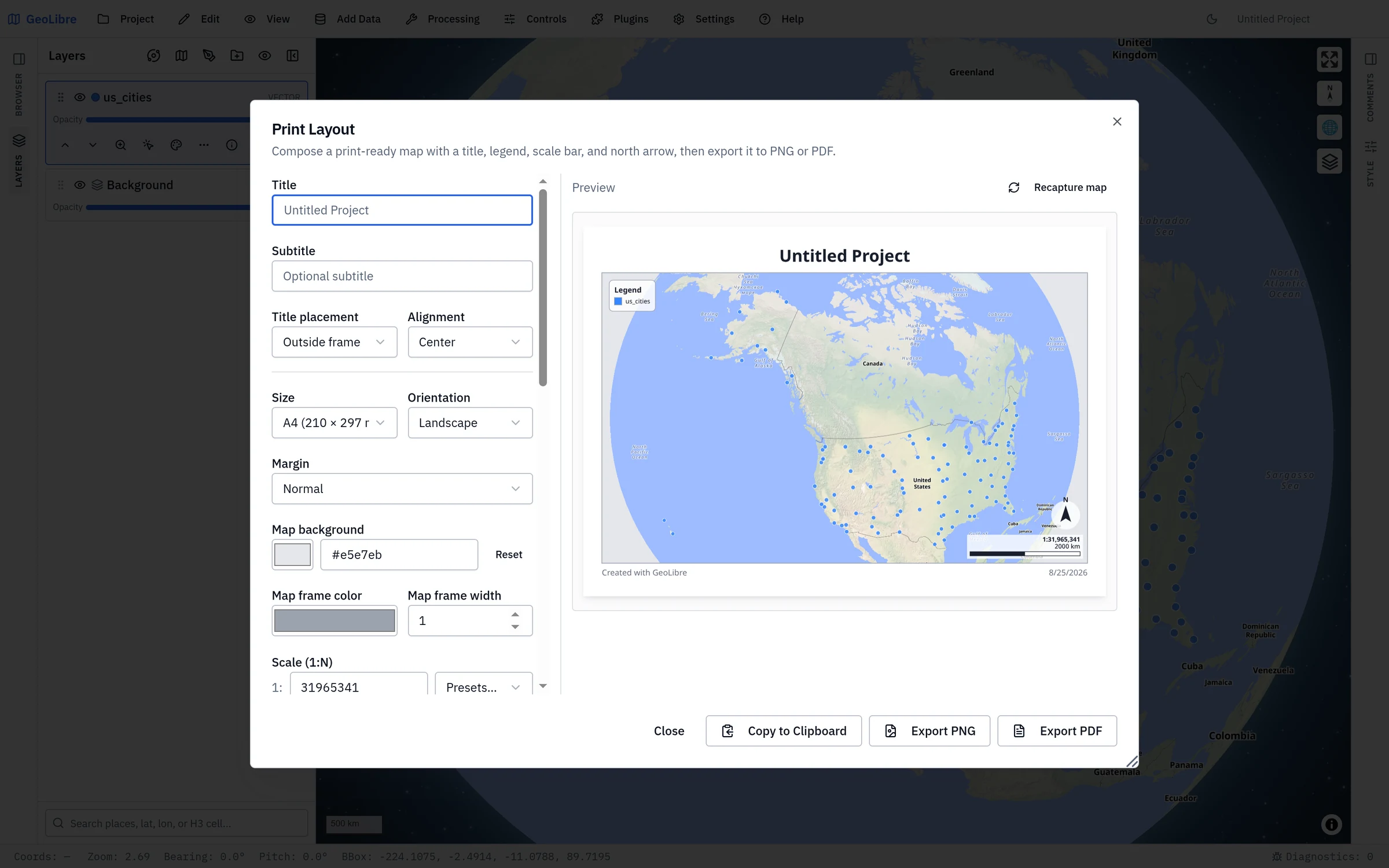
Project → Print Layout... opens the layout composer, which exports the current map to PNG, PDF, or SVG. It carries an editable title and footer, an info (title) block with project metadata, a user-editable legend, an explicit map-scale input, page-size controls, a custom print extent, attribute-table and chart blocks, Atlas / map series generation (one page per feature, or a uniform series along a line), SVG export for editing in a vector editor, and Copy to Clipboard. See Print Layout for the full guide.
Story maps
Project → Story Map... opens the scroll-driven story builder. See Story Maps.
The project format
For the full schema of .geolibre.json, including how layers, styles, and plugin state are serialized, see Reference → Project Format.