Chrome Extension
The Open data in GeoLibre Chrome extension finds supported geospatial data links on the current webpage and opens the datasets you select together on one GeoLibre map.
Install the extension
The extension is published on the Chrome Web Store, so it installs in one click and updates automatically:
Get Open data in GeoLibre from the Chrome Web Store
- Open the Chrome Web Store listing.
- Select Add to Chrome, then confirm.
- Pin Open data in GeoLibre to the Chrome toolbar for convenient access.
It works in any Chromium-based browser that can install from the Chrome Web Store, including Chrome, Edge, Brave, Vivaldi, Opera, and Arc.
Install the packaged release manually
Prefer not to install from the Store, or want to run a build that is newer than the reviewed listing? Load the packaged release as an unpacked extension:
- Open the latest GeoLibre release and download the ZIP asset whose name starts with
geolibre-chrome-. - Extract the ZIP archive to a folder you intend to keep. Chrome loads the extension from this folder, so do not delete it after installation.
- Open
chrome://extensionsin Chrome. - Turn on Developer mode.
- Select Load unpacked and choose the extracted
geolibre-chrome-<version>folder. - Pin Open data in GeoLibre to the Chrome toolbar for convenient access.
A manually installed copy does not update itself. To update it, download and extract the newer release asset, then select the extension's Reload button on chrome://extensions. If you extract it to a different folder, remove the old copy and load the new folder instead.
Open datasets from a webpage
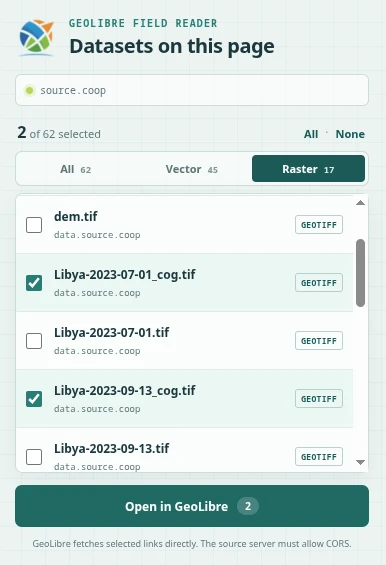
- Visit a webpage or data catalog containing geospatial file links.
- Select the GeoLibre icon in the Chrome toolbar.
- Use All, Vector, or Raster to filter the discovered datasets.
- Check one or more datasets. Nothing is selected by default.
- Select Open in GeoLibre to load the selected datasets on the same map.
The extension recognizes GeoJSON and spatial JSON, GeoParquet and Parquet, PMTiles, GeoTIFF and Cloud-Optimized GeoTIFF, ZIP archives containing GeoJSON, JSON-LD download metadata, and existing GeoLibre data links. On Source Cooperative repository pages, it also reads the embedded inventory so datasets outside the currently visible list can be selected.
Access and privacy
GeoLibre fetches selected links directly, so the source server must allow cross-origin requests (CORS). Complete HTTP(S) URLs, including signed query parameters, are forwarded to GeoLibre. Cookies and other browser-session credentials are not forwarded, so cookie-bound or session-authenticated links might fail. Temporary blob: URLs cannot be transferred.
The extension requests access only to the active tab, and only from the moment you click its icon. It holds no standing permission to any website, stores nothing, sends no analytics, and runs nothing in the background. Map services are recognized by reading back the addresses of the requests the page has already made, which the page records for itself, rather than by watching your browsing.